Course37 Introduces the Written Exam System: Pen-and-Paper Exams, Digitized
Course37 now supports pen-and-paper exams end-to-end: students write on paper and upload their answers, teachers grade on-screen with optional AI assistance, and results stay hidden until published.

Jahangir Hossain
Founter & CEO of Shaitrish
- 8 min read
- 136 views
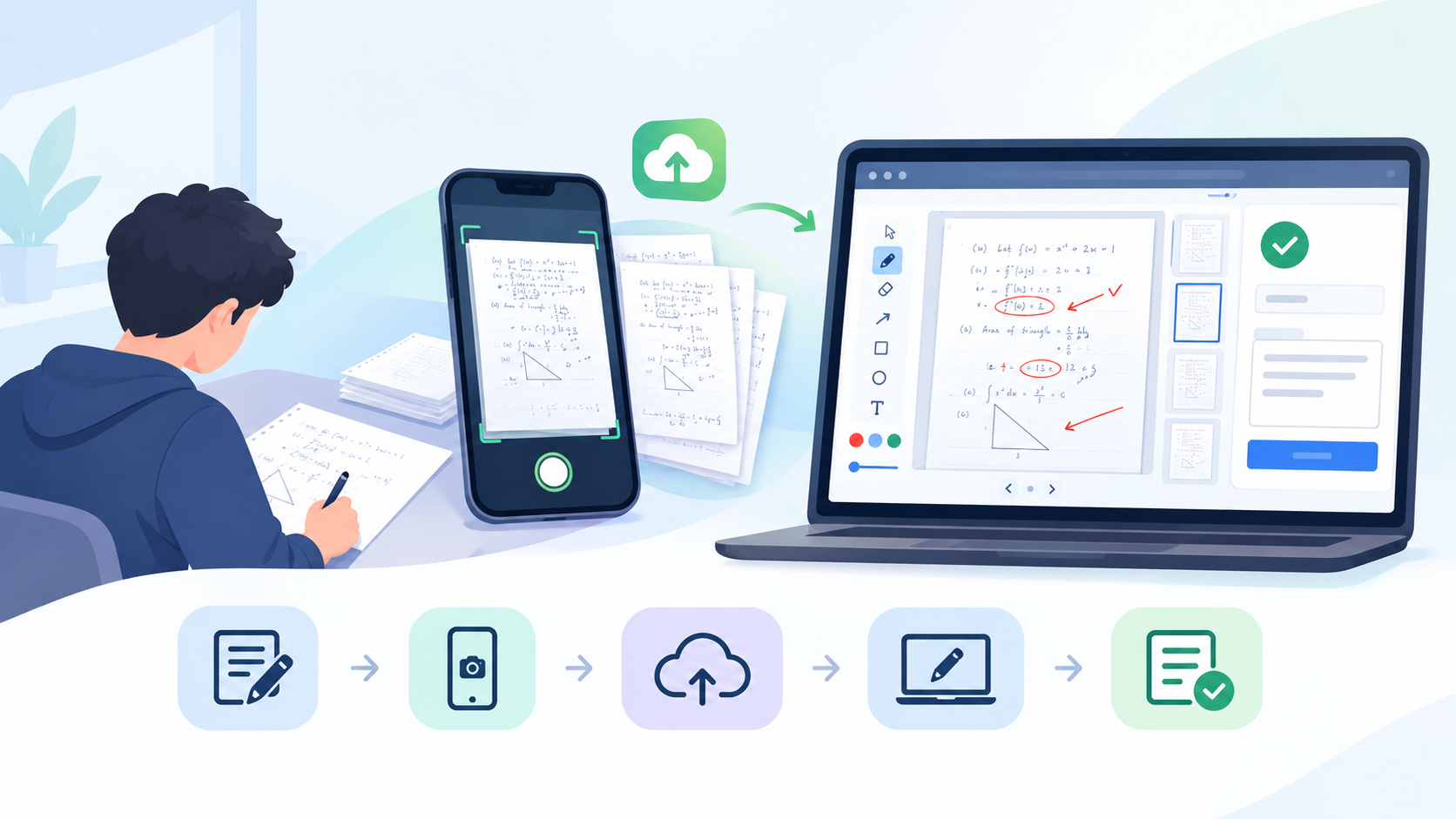
For years, ed-tech platforms have made one confident assumption: that testing means typing. Multiple-choice grids and text boxes work fine for quizzes, but they fall apart the moment a subject calls for long-form answers, diagrams, equations, or a language script a keyboard can't produce. Teachers running that kind of exam on Course37 used to have to step outside the platform entirely — print papers, collect them by hand, and grade on paper while the rest of the course lived online.
That gap closes today. Course37's new Written Upload exam format lets students answer on paper, exactly as they always have, and then photograph or scan their pages and upload them — instead of typing into the browser. You mark the digitized script on screen with a pen tool, optionally helped by AI, instead of the platform auto-marking it.
Creating a Written-Upload Exam
Turn it on from Answer Format in the Create or Update Exam dialog, right next to Exam Type.
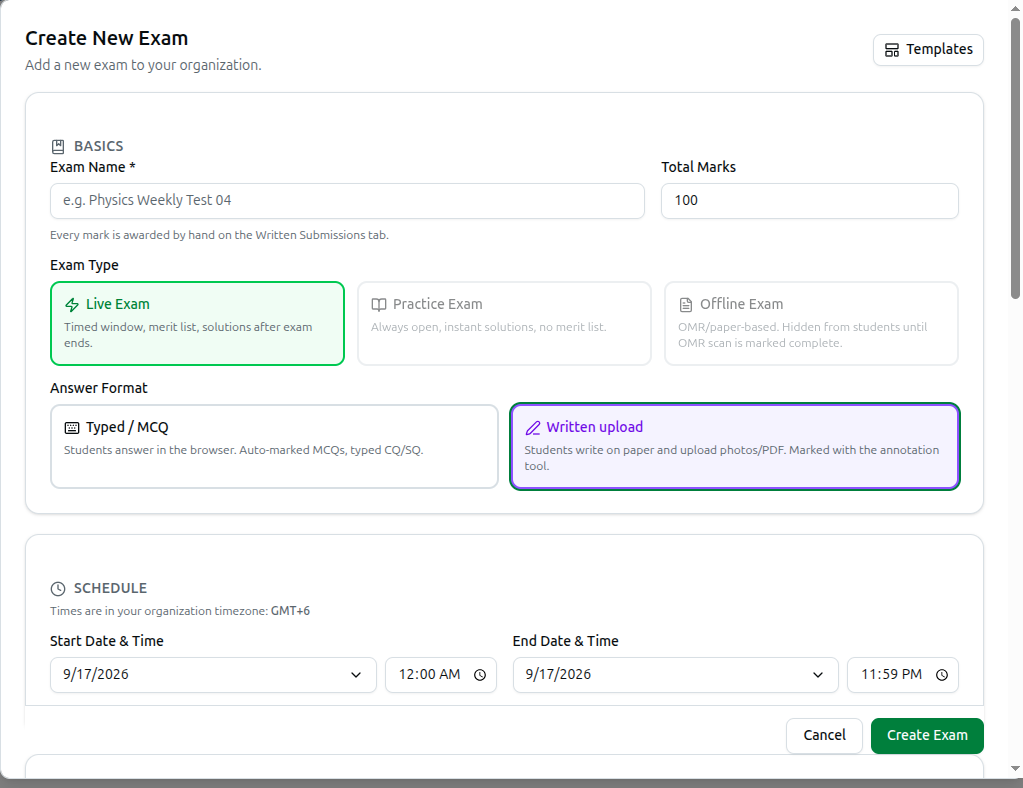
Answer Format offers two choices: Typed / MCQ, the existing behavior where students answer in the browser and MCQs are auto-marked, and Written upload, where students write on paper and upload photos or a PDF, with every mark entered by hand on the Written Submissions tab.
Picking Written upload changes the rest of the form. Exam Type locks to Live Exam — a written-upload paper is always sat in a dated window, never Practice or Offline. Total Marks stays, but the note underneath changes to "Every mark is awarded by hand on the Written Submissions tab" — there's no MCQ/Written/SQ split to configure. A new Question Paper card appears for attaching the PDF(s) students will answer from; it stays hidden until the exam is running, and is only released to a student while their session is active. And Total duration (minutes) becomes required.
Duration & Proctoring
Two settings matter most for a written-upload exam. Total duration is required here, and it's worth understanding precisely: it's how long each student gets once they personally start, not the length of the exam window — they can start any time inside that window. Require camera (snapshot proctoring) asks students to allow their front camera before they can start; despite the exam page later showing a "Face recording on" badge, this isn't continuous video — the system takes a few snapshots at random times, plus one every time the student switches away from the tab.
Two more settings round it out. Max tab switches (default 2) auto-submits the exam once reached, and it's counted server-side so it can't be bypassed. Upload grace after time-up is written-upload only: extra minutes after the timer ends during which a student can still photograph and upload their paper — the question paper itself is hidden during this window, since it's upload-only time.
The Exam Detail Page
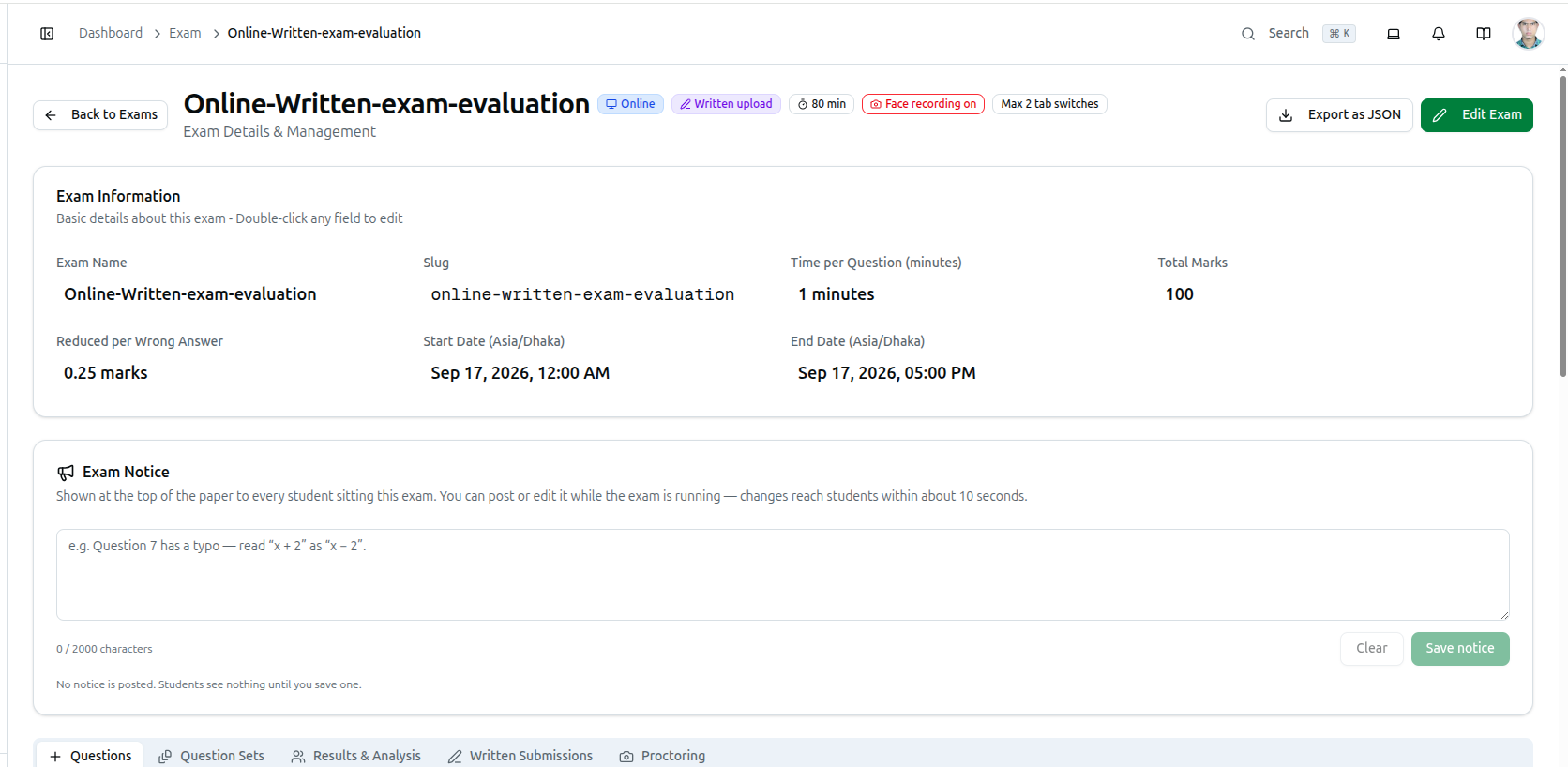
The header badges summarize the exam at a glance — delivery, answer format, duration, whether camera proctoring is on, and the tab-switch limit. Worth knowing about even outside written-upload exams: Exam Notice, a message shown at the top of the paper to every student sitting it. You can post or edit it while the exam is running — handy for correcting a typo mid-paper — and changes reach students within about 10 seconds.
Two tabs appear conditionally here: Written Submissions only on written-upload exams, and Proctoring on any exam format where Require camera is switched on.
What the Student Sees
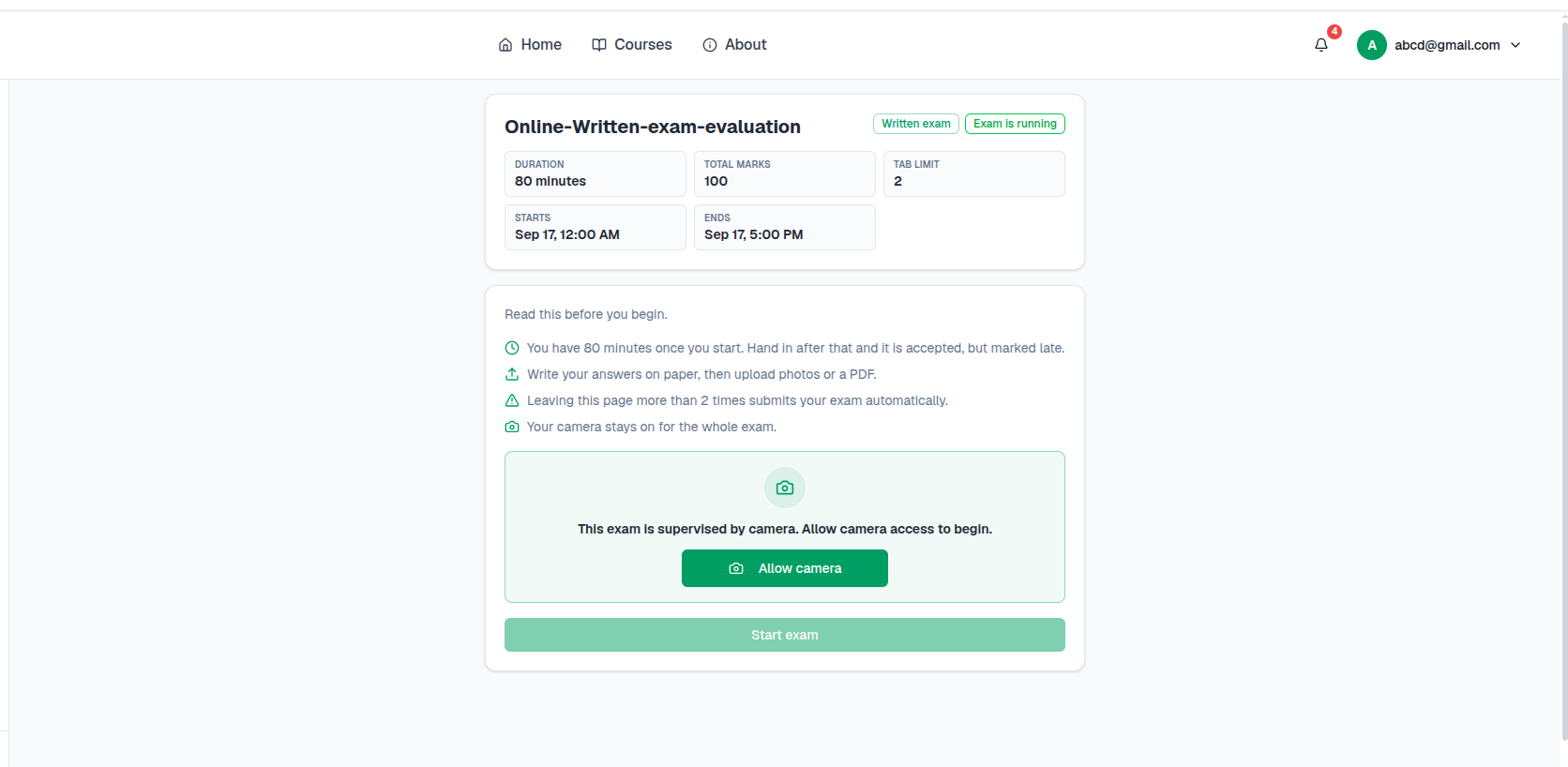
Before starting, students see duration, total marks, the tab limit, the exam window, a plain-language rules list, and — if camera proctoring is on — a hard gate: Allow camera must be granted before Start exam becomes usable.
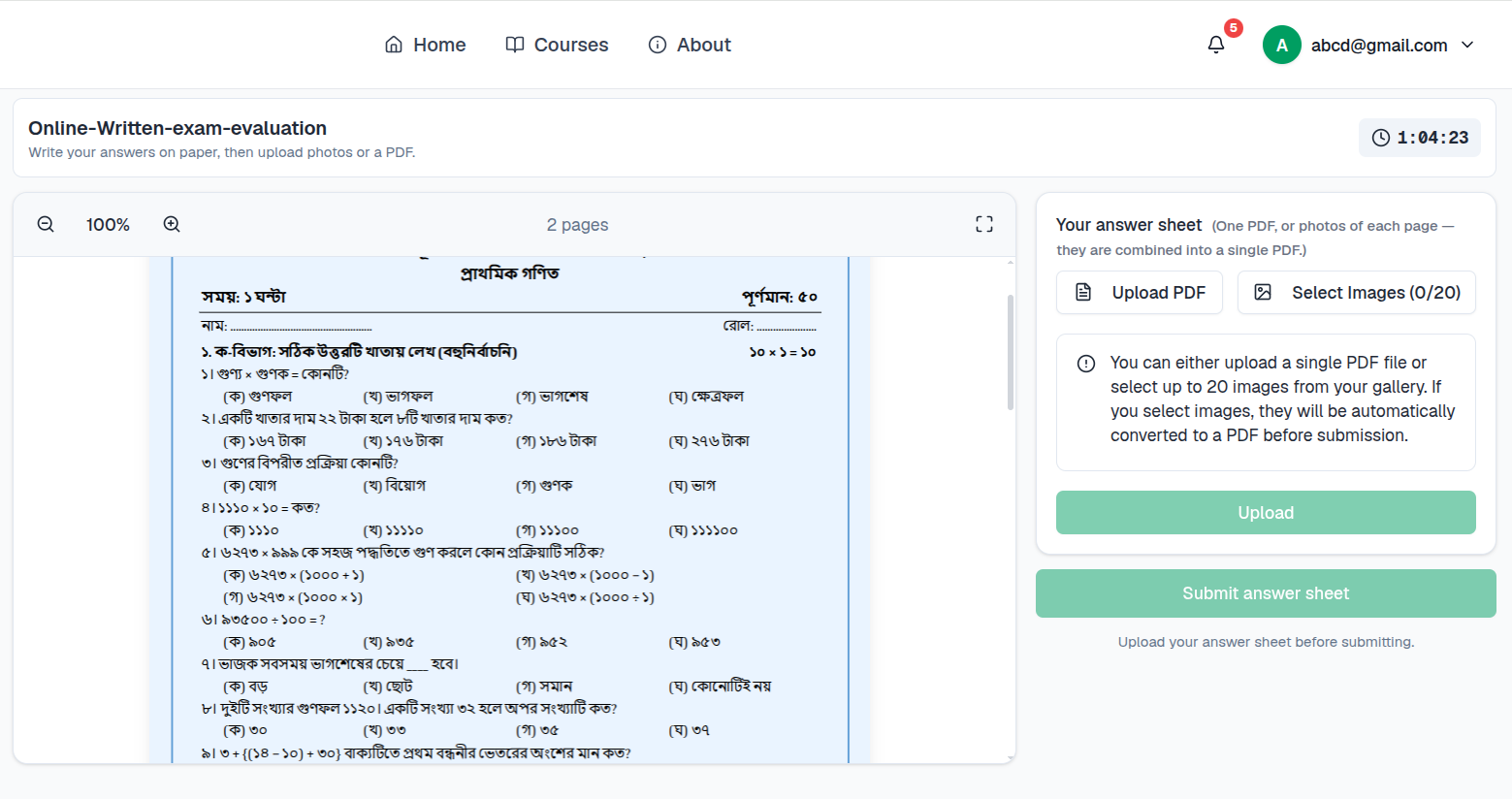
During the exam, the question paper sits on one side — zoomable, paginated — alongside an upload panel on the other.
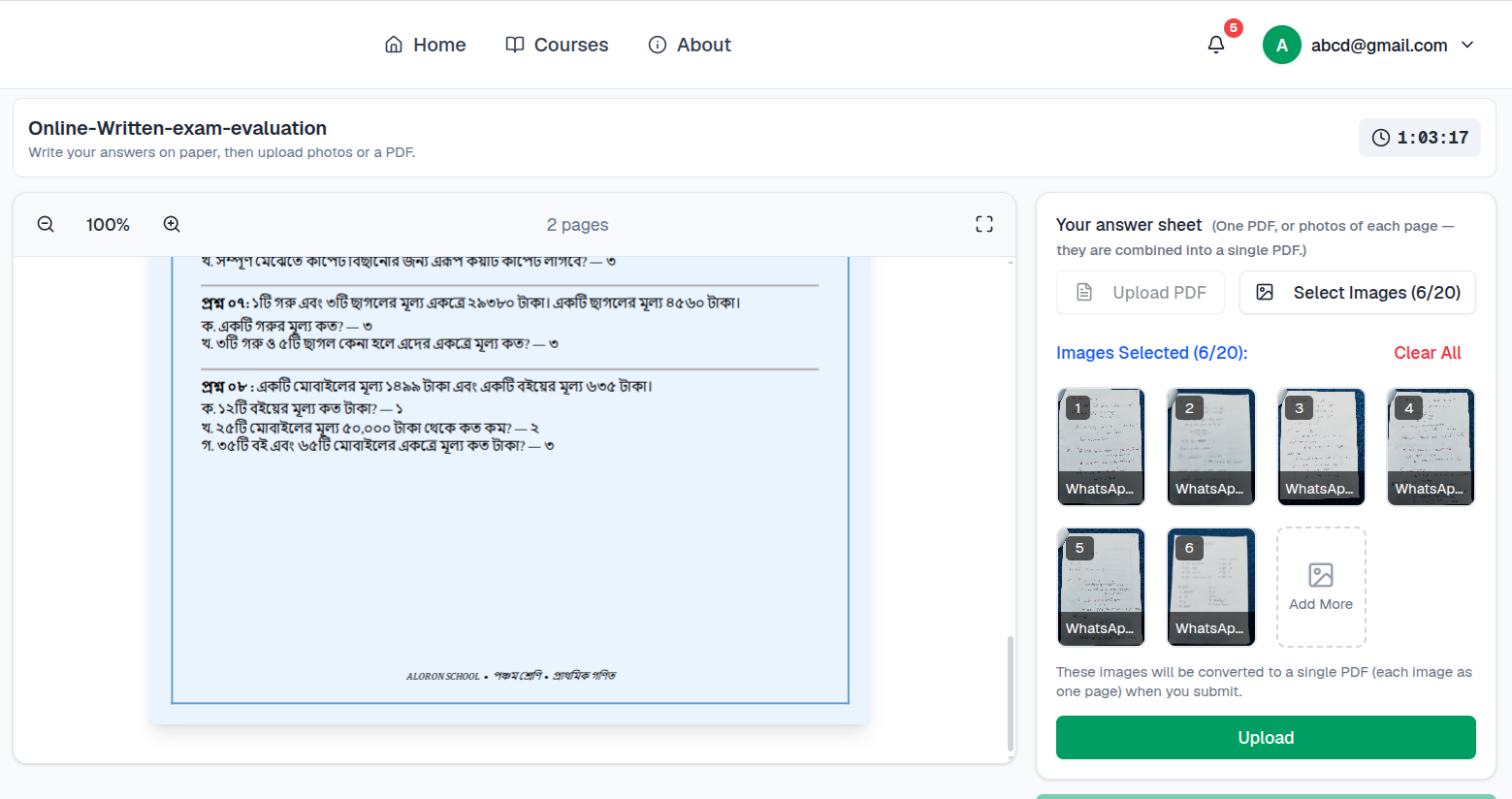
A student uploads one PDF, or up to 20 photos of their pages; photos are combined into a single PDF automatically on submission.
Reaching Max tab switches submits the exam immediately with whatever was uploaded at that point. Running out of time starts the upload grace window instead of an instant cutoff, if one is configured. After submitting, the student sees a confirmation and a waiting state — their script has gone to the teacher, and marks only appear once results are published — but they can still review the pages they uploaded.
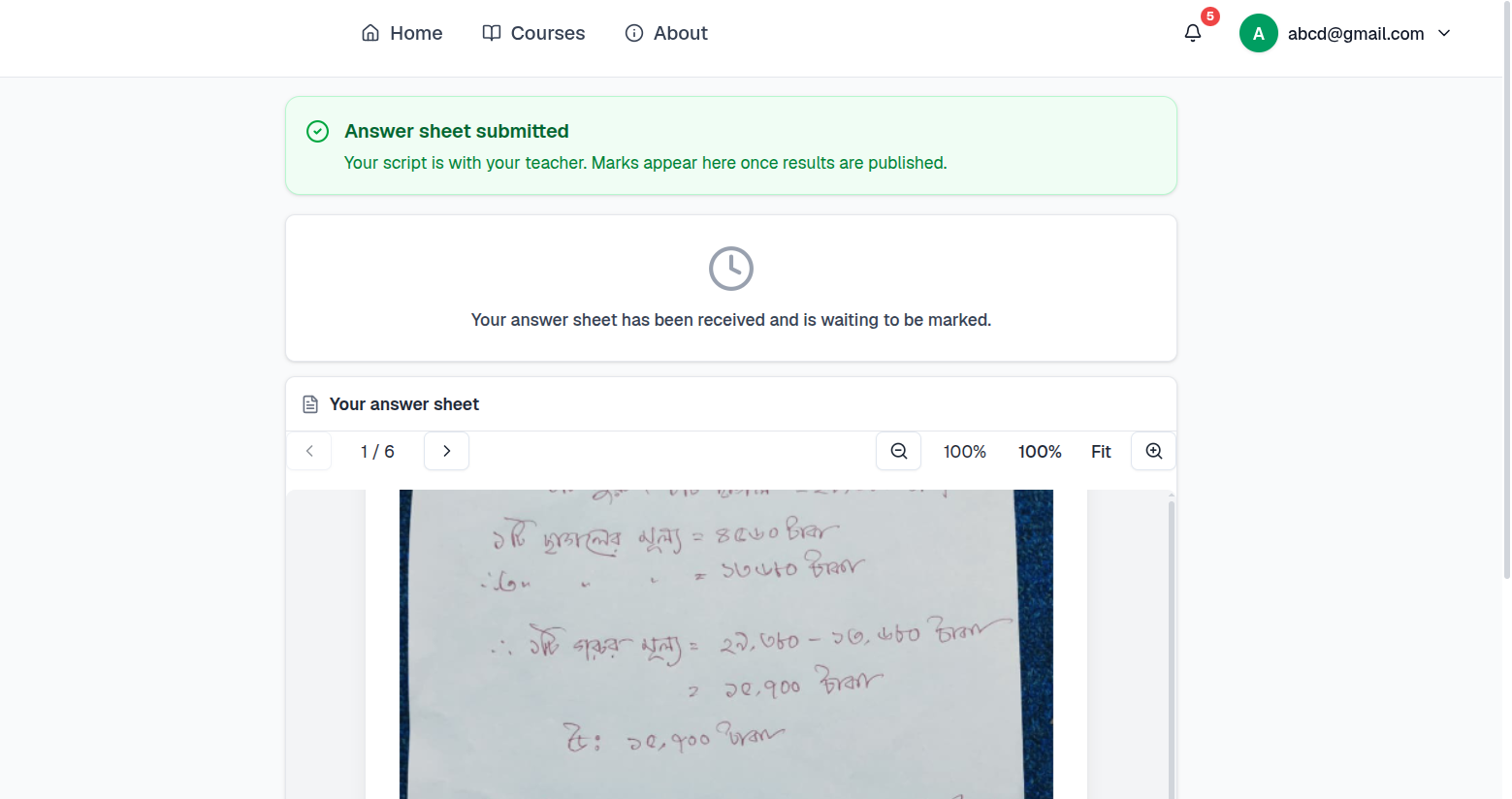
Grading Submissions
Grading happens on the exam's Written Submissions tab, which behaves like Course37's other digital grading tools: stat cards up top (Enrolled, Submitted, Graded, Late, Missing), Submissions and Not Submitted sub-tabs, a search box, and a status filter.
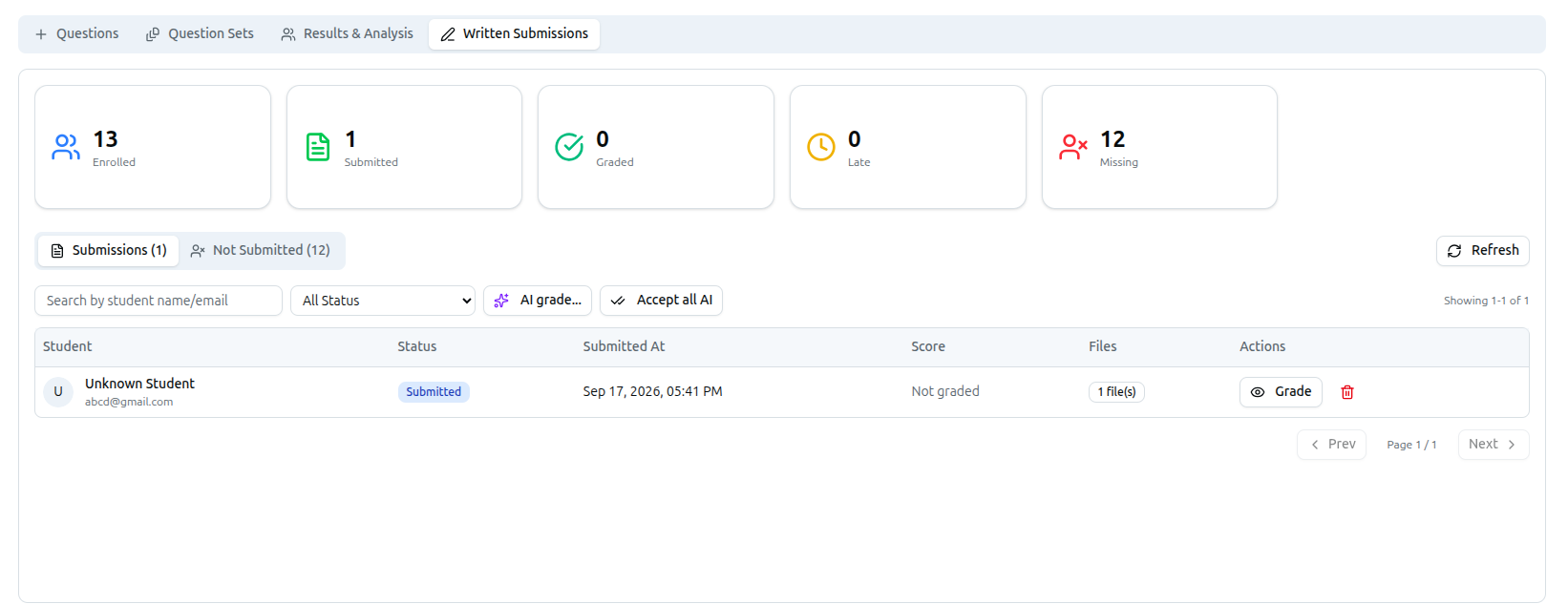
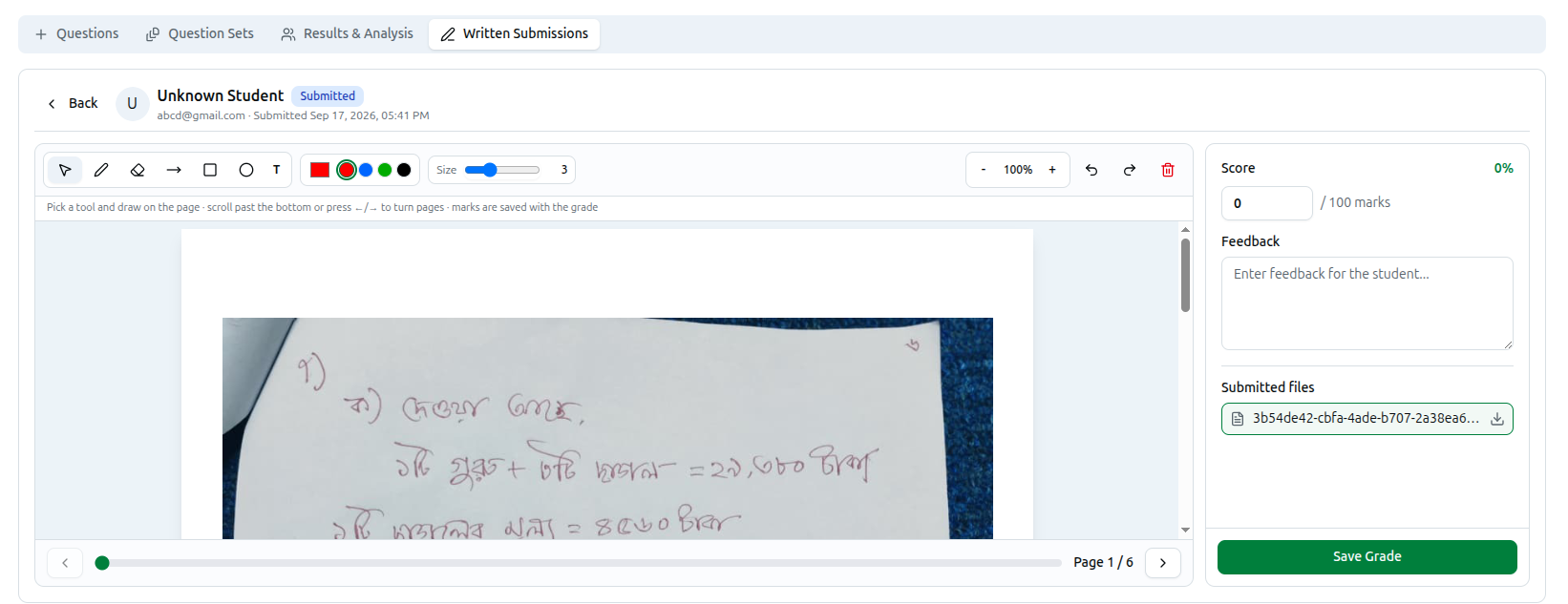
AI grade… sends a submission — or, with Accept all AI, every ungraded one — to an AI grader that has the question paper as context, producing a suggested score and feedback you can accept as-is or adjust. For grading by hand, clicking Grade on a row opens an annotation tool: pointer, pen, eraser, arrow, rectangle, circle, and text tools, a color and brush-size picker, undo/redo, zoom, and page navigation, all drawn directly on the student's uploaded pages, alongside a Score field, a Feedback textarea, and Save Grade.
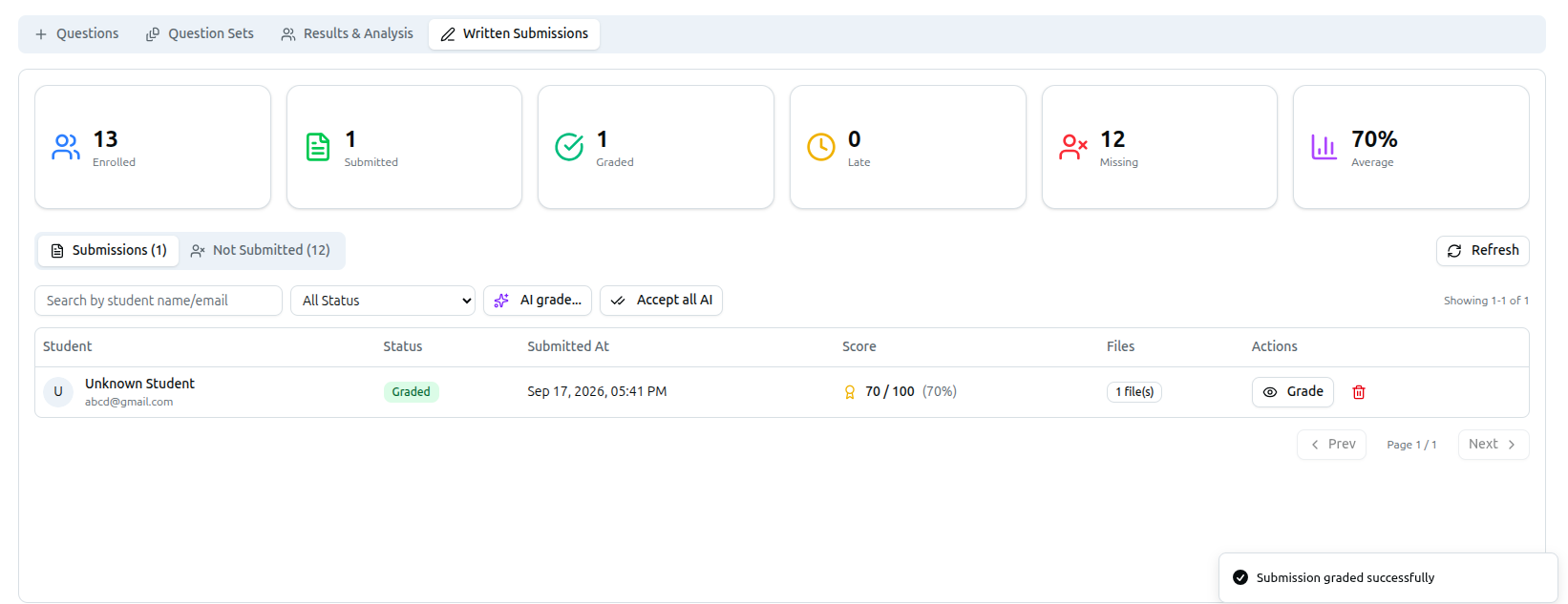
Once graded, the row's status flips to Graded with its score, and the tab gains an Average stat card across everything graded so far.
One thing worth flagging: deleting a submission is a full reset, not a correction. It permanently removes the uploaded answer sheet, the proctoring snapshots, the result, and the exam session, letting the student sit the exam again from scratch — use it to let someone retake the paper, not to fix a wrong grade.
Publishing Results
Grading a script doesn't, by itself, show the mark to the student. Freeze Position on the exam's Results & Analysis tab is the step that actually publishes marks and annotated scripts — grade everything first, then freeze position when you're ready for students to see their results.
Proctoring, Made Reviewable
The Proctoring tab is available on any exam with camera proctoring on, not just written-upload ones. It lists every student who sat the exam with their captured snapshots, color-coded by kind: plain border for a scheduled snapshot, blue for one requested manually, red for a violation captured around a tab switch. Each snapshot also carries a face count, computed on the student's own device — a review aid, not proof, since it's posted alongside the upload. An entry is flagged when the student switched tabs at all, the exam auto-submitted for them, a snapshot was a violation, or a snapshot found no face; toggle Flagged only to see just those.
What the Student Sees After Results
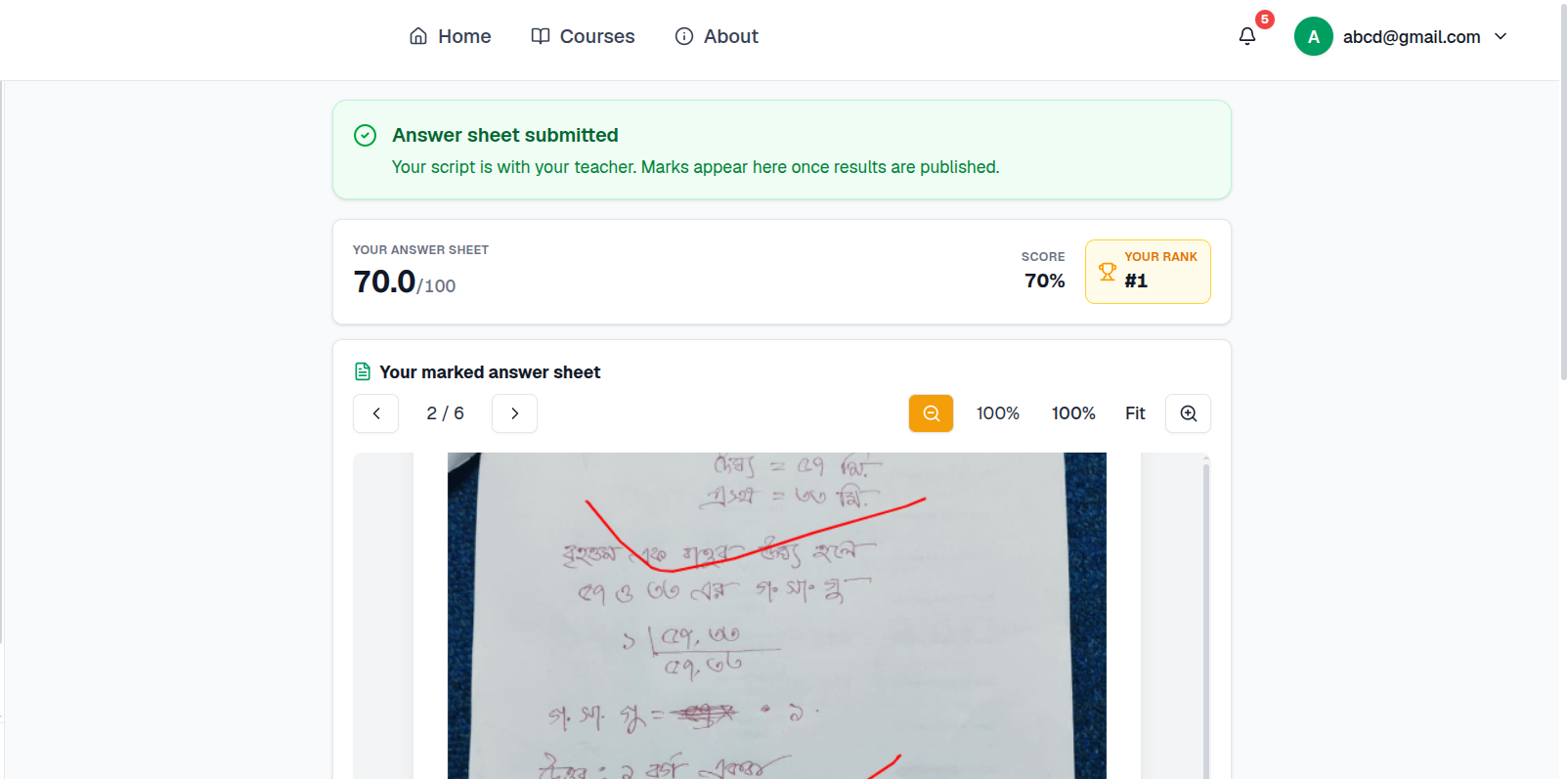
Once results are frozen, the student's page updates with their Score, their Rank, and their marked answer sheet — the same pages they uploaded, now showing your on-screen annotations, page by page.
See It in Motion
We also put together a short walkthrough recorded on Aloron, one of the platforms already running written exams this way, showing exactly what a student sees from start to finish:
Try It
Full setup steps, plus a troubleshooting table for common questions, live in our documentation: docs.course37.com/docs/how-to-create-written-upload-exams. If you're already running a course on Course37, the Written Exam System is available now — no migration, no separate tool, just a new option in the exam you were already going to create.